Hold a key, talk, and your words appear.
0ne Dictate types what you say into whatever app you are in: email, Slack, ChatGPT, Claude, your docs. Free, private, and it runs entirely on your own computer.
Mac, Windows and Linux · No account · No subscription · No audio leaves your computer
1
Hold
Option + SpaceCtrl + Space on Windows and Linux2
Talk
Say it the way you would say it out loud.3
Let go
Your words are typed where your cursor is.
Install it
Two ways. Pick whichever feels easier. Both end with the same app.
Let your AI install it for you
Already have 0ne or Claude Code open? Copy this, paste it in, and press Enter. It installs 0ne Dictate and walks you through the setup one screen at a time.
Install 0ne Dictate on this computer for me. First check whether this is a Mac, Windows or Linux machine. On a Mac or Linux, run: curl -fsSL https://0neos.com/dictate.sh | bash. On Windows, run this in PowerShell: irm https://0neos.com/dictate.ps1 | iex. When it finishes, walk me through the setup screens one at a time and wait for me after each one: allow the microphone, then (Mac only) turn on Accessibility for 0ne Dictate, then pick the recommended model. Finally, have me test it: click into a text box, hold Option+Space on Mac or Ctrl+Space on Windows and Linux, say a sentence, and let go.
Or run it yourself
One command. Choose your computer.
- Open Terminal: press Cmd + Space, type Terminal, press Enter.
- Copy this command.Terminal
curl -fsSL https://0neos.com/dictate.sh | bash - Paste it into Terminal and press Enter. It downloads and opens 0ne Dictate for you.
The first time 0ne Dictate opens, it downloads its speech model once. The recommended English model is about 700 MB, so give it a few minutes on a good connection. After that it works offline.
What happens next
When the app opens, it asks for a few things. Go through them in this order.
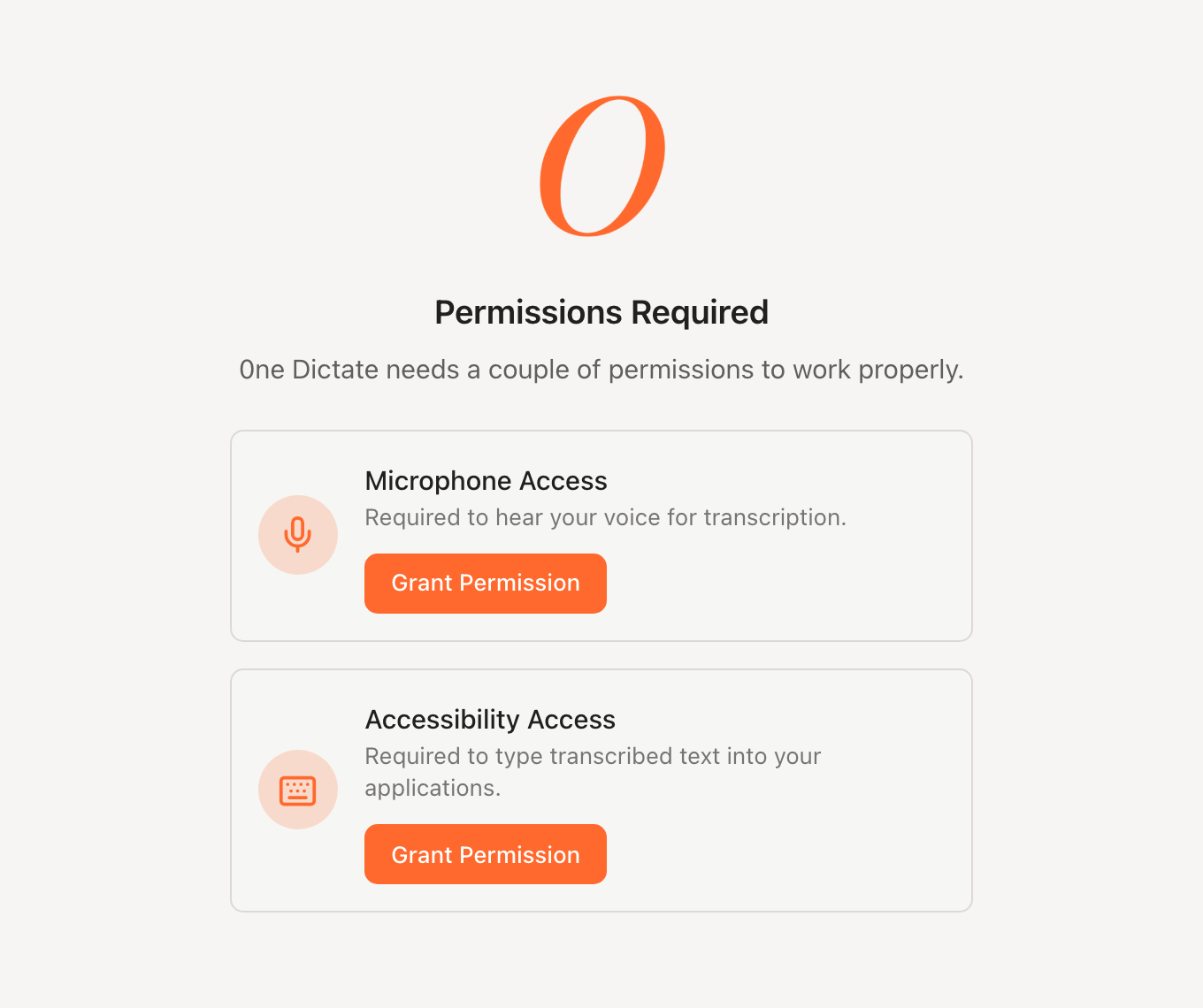
Allow the microphone
On the Permissions Required screen, click Grant next to Microphone, then click Allow.
Turn on AccessibilityMac only
Click Grant next to Accessibility. A System Settings window opens. Find 0ne Dictate in the list and switch it on.
This is what lets it type into your other apps. No installer can switch it on for you, so this one is on you. Windows and Linux skip this step.
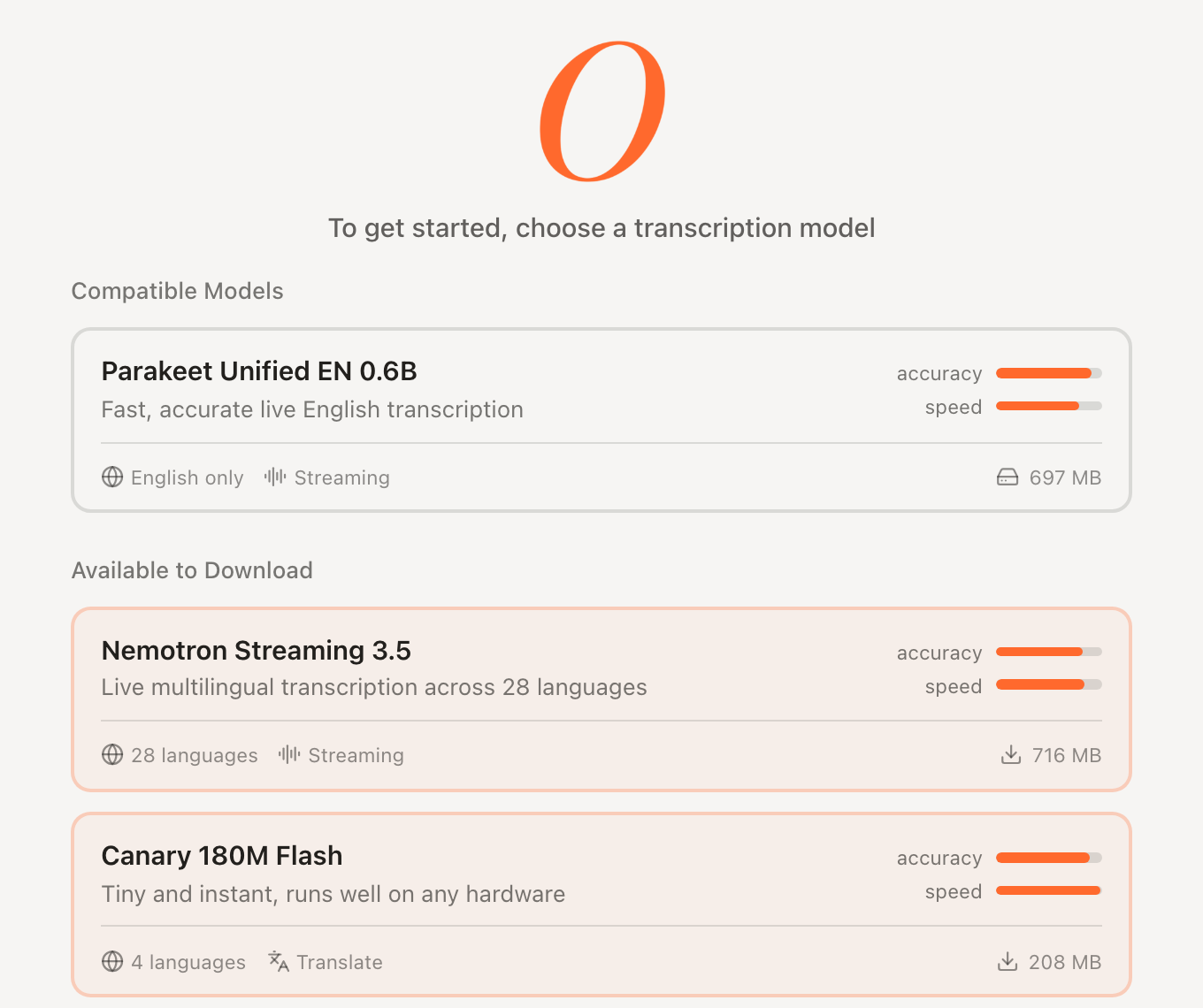
Choose a model
Pick the one marked recommended. It downloads once (about 700 MB for English) and then stays on your computer.
Test it
Click into any text box: an email, a note, a chat. Hold Option + Space on Mac, or Ctrl + Space on Windows and Linux. Say a sentence. Let go.

While you talk, a small recorder floats at the bottom of your screen. 
When you let go, it says Transcribing... for a moment, then your words appear. Words showed up? You are done.
How to use it every day
Hold the shortcut, talk, let go. It works in any app where you can type, so there is nothing new to open.
Answer email
Click into the reply, hold the shortcut, and say what you would say if they were standing in front of you. Tidy it up, hit send.
Talk to ChatGPT or Claude
Give it the whole backstory in one breath instead of typing a short version. More context, better answers.
Message your team
In Slack or a text, hold, say the update, let go. Done before you would have finished typing the first line.
Your shortcut, your way
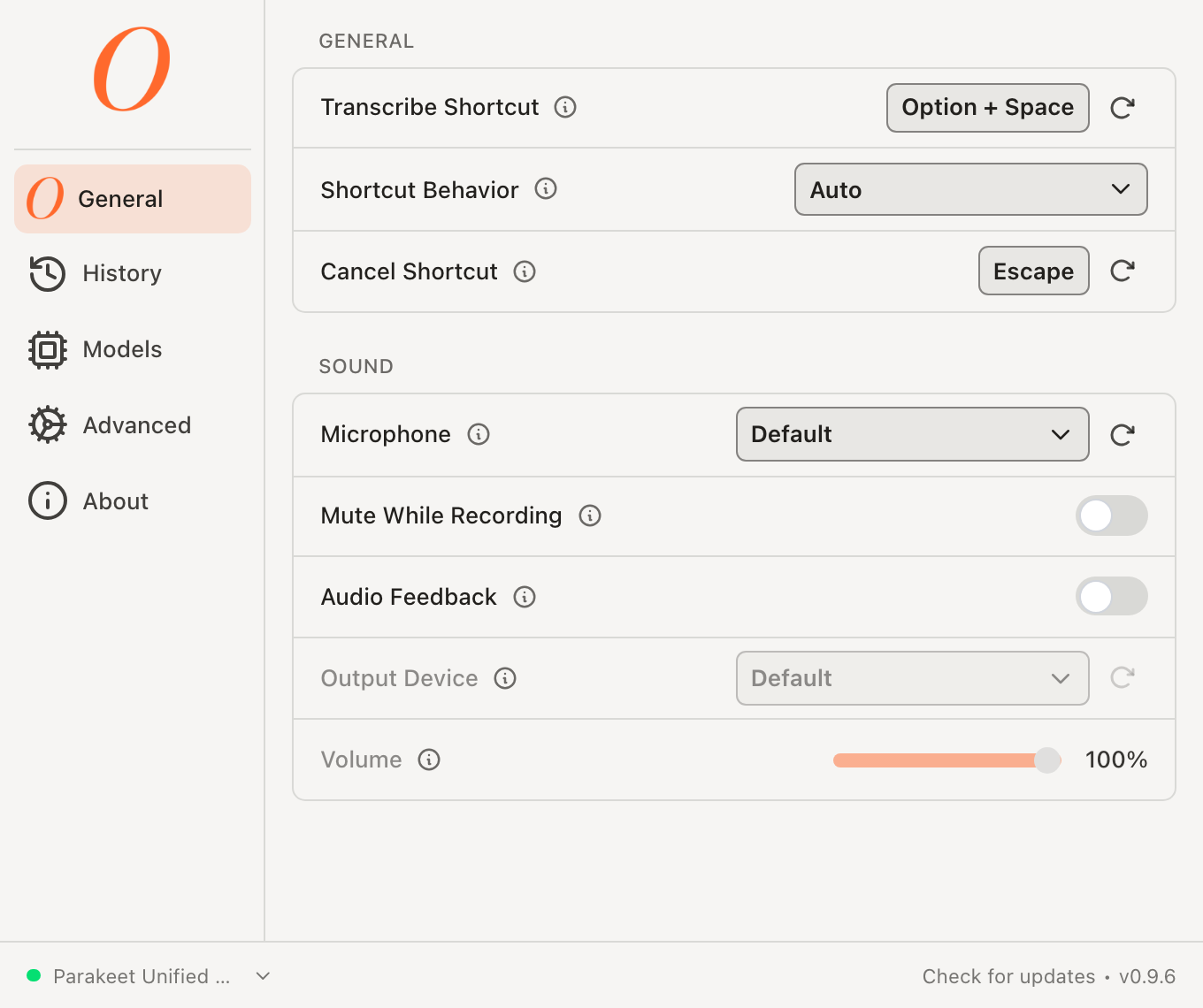
The shortcut lives in 0ne Dictate settings under General. Change it there if another app already uses it, and pick your microphone in the same place.
Changed your mind mid-sentence? Press Esc to cancel.
If something is off
The usual fixes, in plain words. Tap one to open it.
I talk, but no words appear (Mac)
This is almost always Accessibility. Open System Settings, then Privacy & Security, then Accessibility, and make sure 0ne Dictate is switched on.
If it is already on, it may be switched on for an older copy. Select 0ne Dictate in that list, click the minus (−) button to remove it, then open 0ne Dictate and click Grant again.
Nothing happens when I hold the shortcut
Another app is probably using the same shortcut. Raycast, Alfred and the ChatGPT desktop app all like Option + Space. Open 0ne Dictate settings and change its shortcut to something else.
Another dictation app already on your computer may use the same shortcut. The installer quits it for you.
Windows says the app was blocked (Smart App Control)
That PC is set to block apps that are not signed yet, and 0ne Dictate is not signed yet. A signed version is coming. Until then it will not run on that computer.
It is not hearing me, or picks up the wrong microphone
Open 0ne Dictate settings, go to General, and choose the microphone you are actually talking into.
I started recording by accident
Press Esc. It cancels, and nothing gets typed.
Questions
- Is it free?
Yes. No account, no subscription, no trial that runs out.
- Does my audio go anywhere?
No. 0ne Dictate runs entirely on your own computer. Your voice is turned into text right there and never leaves the machine.
- Do I need 0ne to use it?
No. Anyone can use it. If you do have 0ne or Claude Code, the copy-paste prompt above is the easiest way to install it.
- Does it work offline?
Yes, once the speech model has downloaded. That happens one time, the first time you open it.
- How do I update it?
You do not have to go looking. It checks for updates on its own, and when it offers one, click update.
Talking to your computer is step one.
0ne Dictate comes from 0ne, a personal AI system that lives on your computer, learns your business, and does real work for you. If you are curious what that looks like, have a look around.
See what 0ne is